

Email Templates
How to Add Attachments in Email
Learn how to attach files to emails using static uploads, dynamic placeholders, fixed file mappings, and runtime-generated attachments in Fyno.
In this document, we will explain how to add a single or multiple attachments in your email.
You can add static as well as dynamic attachments to emails
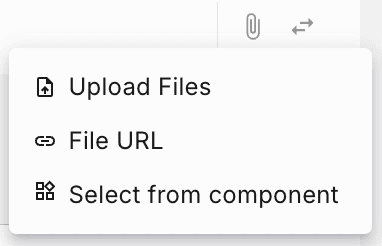
On clicking on the attach button (highlighted below) on the to right corner of the either Email editor, you will see:
-
Upload Files: Allows you to attach files from the system. This then stays as a static attachment in the body of the email and is sent along with the email as an attachment every time it's triggered.
-
Dynamic Placeholders: Allows you to include dynamic files within the email, when the notification event is triggered. You can use placeholders to specify the:
- File Name - Provide a static value like 'Invoice.pdf' (if you are testing it manually) or a placeholder like
{{attachment.filename}}(if your are triggering notification event via API) - Type - Select the file type from the dropdown or you can enter a placeholder like
{{attachment.filetype}}You can see all the MIME types here - URL - Provide a static URL or Dynamic URL using a placeholder like
{{attachment.presigned_url}}. The URL should be wither pre-signed or public URL.
- File Name - Provide a static value like 'Invoice.pdf' (if you are testing it manually) or a placeholder like
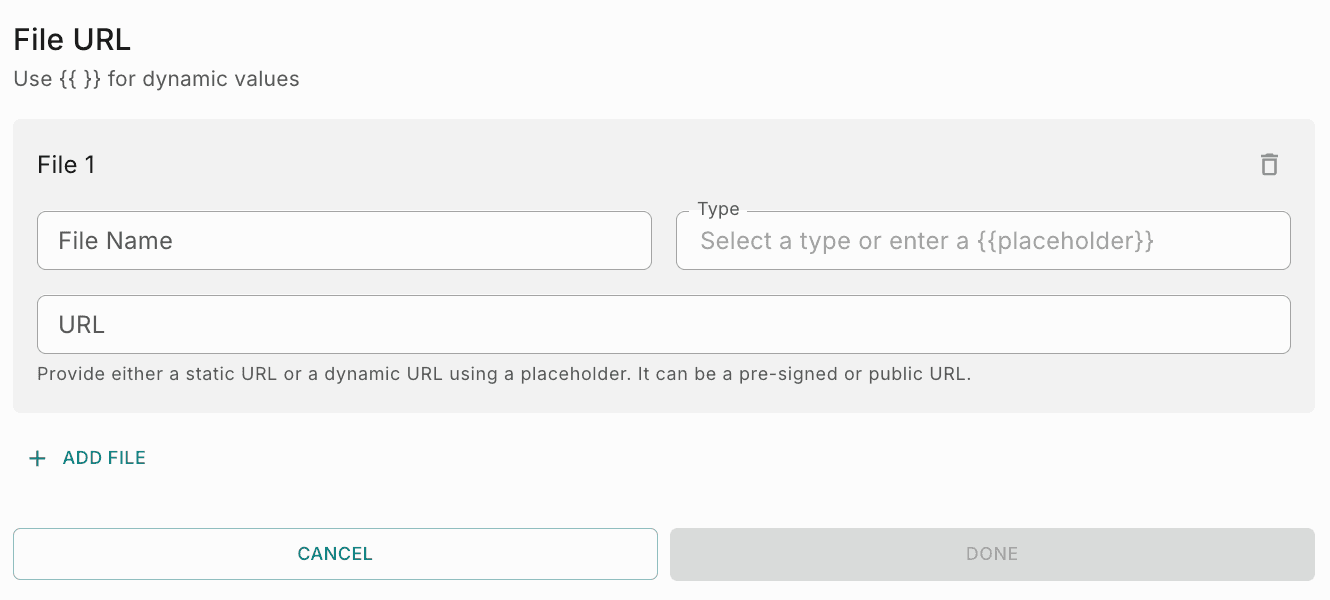
Placeholders should be used if the attachment information is dynamic (for instance, a personalized attachment depending on the recipient). Typically such attachments are sent via an API call. To send dynamic attachments in the event payload, make sure that the data section of the payload has an object called attachment as shown below.
curl -X POST 'https://api.fyno.io/v1/<WorkspaceID>/event' \
-H 'Authorization: Bearer <API_KEY>' \
-H 'Content-Type: application/json' \
-d '{
    "event": "EmailWithAttachments",
    "to": {
        "email": "xyz@gmail.com"
    },
    "data": {
       "attachment":
        {
            "presigned_URL": "<presigned_URL>",
            "filename": "<attachment_file_name>",
            "filetype": "application/pdf"
       }
    }
}'
In the above command:
<WorkspaceID> with your actual Workspace ID.<API_KEY> with your actual API key.<presigned_URL> with the Presigned URL of your file.<filename> with the name of the file attached.How to add multiple attachments?
To add multiple attachments in email, add them in the placeholders as shown below.
For file 1, you can give the below placeholders,
- Filename -
{{attachment.0.filename}} - File Type -
{{attachment.0.filetype}} - Content -
{{attachment.0.presigned_URL}}
For file 2, you can give the below placeholders
- Filename -
{{attachment.1.filename}} - File Type -
{{attachment.1.filetype}} - Content -
{{attachment.1.presigned_URL}}
Configuring File Attachments Using Fixed Mode
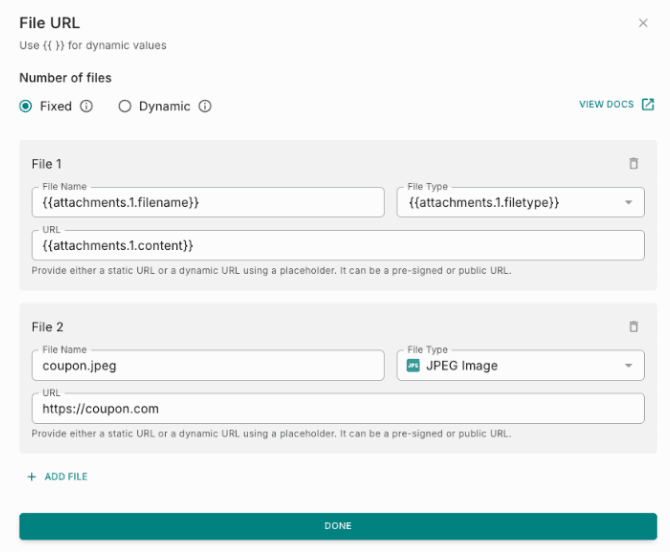
Fixed Mode is used when the number of files is predefined and does not change at runtime.
You manually configure each file (File 1, File 2, etc.) by specifying its name, MIME type, and URL individually.
When to Use Fixed Mode
Use Fixed Mode when:
- The number of files is known in advance.
- The same files are sent to all users.
- Files are static (for example, brochure, invoice template, product catalog).
- You need full control over each file configuration.
Example Static Configuration
File 1
- File Name:
invoice.pdf - MIME Type:
application/pdf - URL:
https://example.com/invoice.pdf
File 2
- File Name:
coupon.jpg - MIME Type:
image/jpeg - URL:
https://example.com/coupon.jpg
Result:
Both files will always be attached exactly as configured.
Fields Explained
| Field | Purpose | How to Configure | Example |
|---|---|---|---|
| Number of Files | Defines how many files will be attached. | Select Fixed and manually add each file. | — |
| File Name | Specifies the name shown to the user. | Enter a static file name or placeholder. | invoice.pdf |
| MIME Type | Defines the file type being sent (must be valid MIME type). | Select from dropdown or enter a valid value (e.g., image/png, application/pdf). | application/pdf, image/jpeg |
| URL | Specifies the file location. | Enter a publicly accessible URL or a valid pre-signed URL. | https://example.com/file.pdf |
Important Notes
- Each file must be configured separately.
- The URL must be publicly accessible or pre-signed.
- The MIME type must be valid (for example,
application/pdf,image/png). - The number of files will remain fixed for every execution.
- If the file count needs to vary dynamically, use Dynamic Mode instead.
Sample Configuration Summary
If you configure:
| File | File Name | MIME Type | URL |
|---|---|---|---|
| File 1 | product_catalog.pdf | application/pdf | https://example.com/catalog.pdf |
| File 2 | pricing_sheet.pdf | application/pdf | https://example.com/pricing.pdf |
Result:
2 files will always be attached:
product_catalog.pdfpricing_sheet.pdf
Configuring File Attachments Using Dynamic Mode
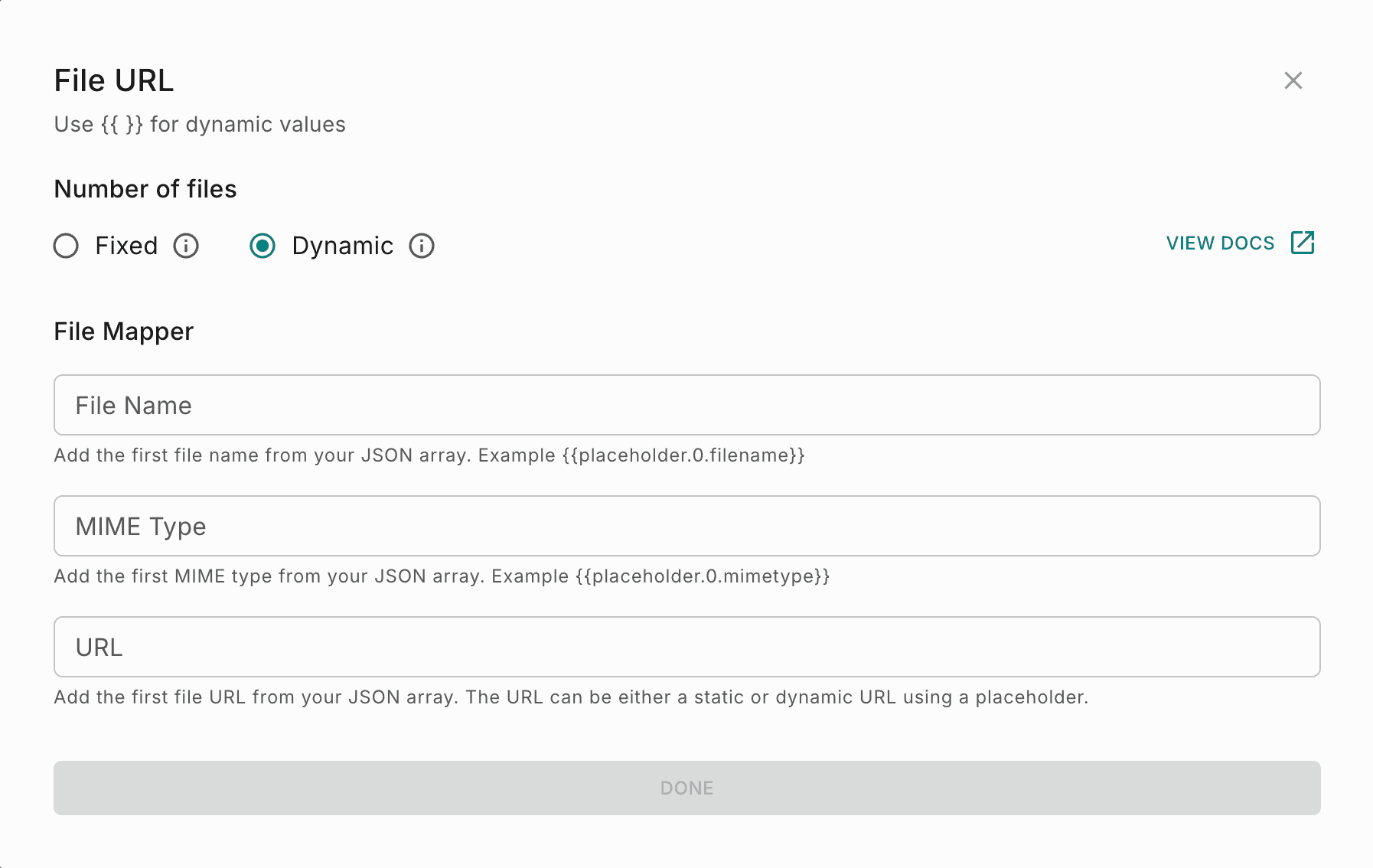
Dynamic mode is used when the number of files is not fixed and is provided at runtime as a JSON array (for example, from a previous step’s output).
Instead of manually adding File 1, File 2, File 3, and so on, you define mappings that tell the system:
“For each item in this array, get the file name from here and the URL from there.”
When to Use Dynamic Mode
Use Dynamic mode when:
- The number of files varies per execution.
- Files come from an API response, loop, or previous ste.
- You don’t know in advance how many files there will be.
Dynamic File Attachment Fields
This section explains all fields used to configure dynamic file attachments.
| Field | Purpose | How to Configure | Example |
|---|---|---|---|
| Number of Files | Enables array-based (dynamic) file creation. | Select Dynamic. | — |
| File Mapper | Defines one template mapping that applies to every item in the array. | Configure once; the system automatically applies it to all items. | — |
| File Name (Dynamic) | Specifies where to get the file name for each item. | Reference the array item using a placeholder. | {{files.0.filename}} or {{array_path.0.filename}} |
| MIME Type | Specifies the type of file being attached. | Reference a placeholder that resolves to a valid MIME type (not a file extension). | {{files.0.mime_type}} → image/png, application/xml |
| URL (Dynamic) | Specifies where to get the file URL for each item. | Reference the array item’s URL field. | {{files.0.url}} |
Important Notes
- Dynamic placeholders must strictly follow the
a.0.bformat (for example,{{documents.0.name}}). - The
.0.segment is required and acts as a schema hint that allows the system to identify array items. - Nested arrays or nested objects are not supported.
If the filename or URL is not a direct property of the array item, dynamic mapping will not work.
Sample Body
{
  "documents": [
    {
      "name": "a.pdf",
      "link": "https://x/a.pdf",
      "mime_type": "application/pdf"
    },
    {
      "name": "b.pdf",
      "link": "https://x/b.pdf",
      "mime_type": "application/pdf"
    }
  ]
}
Dynamic Field Configuration
- File Name (Dynamic):
{{documents.0.name}} - MIME Type:
{{documents.0.mime_type}} - URL (Dynamic):
{{documents.0.link}}
Result
Two files are automatically added:
- a.pdf
- b.pdf