
Voice
Voice Ozonetel Integration
Learn how to integrate Ozonetel Voice with Fyno by configuring API credentials, campaigns, caller IDs, and IVR setup for outbound and inbound voice notifications.
Before we get started, you will need to have a Ozonetel account already set up, along with numbers assigned and IVRs pre-created. Make sure you have created at least 1 inbound or outbound campaign.
Find the Provider
Navigate to the Integrations page. On the page that opens, find "Voice" and click on the "Ozonetel" button.
Configure the Integration
In the pop-up, fill in:
- Custom name: Provide a name that would help you identify the configured account in Fyno's portal.
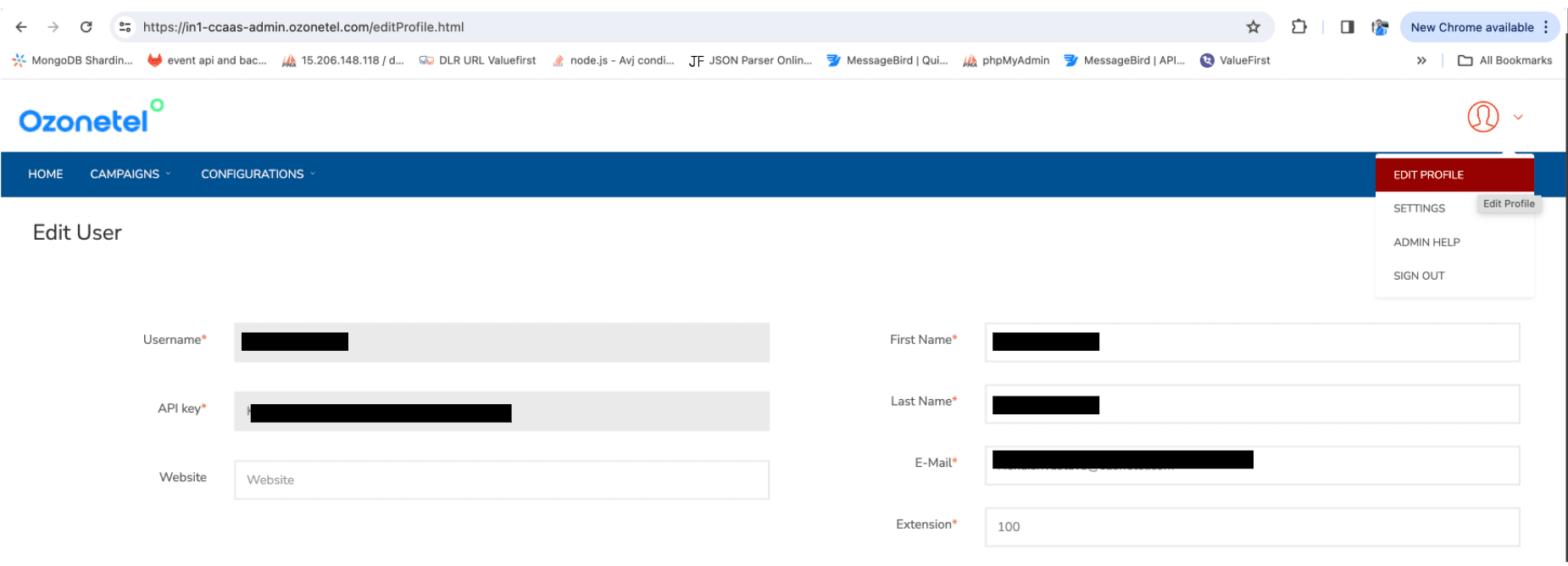
- API Key: Enter the API Key from your Ozonetel Platform. You can access it from Home page -> Edit Profile
- Username: Enter the Username from your Ozonetel Platform. You can access it from Home page -> Edit Profile
- DID/Caller ID: Enter the caller ID for the number/IVR that you intend on triggering with this integration. You can access it from Campaigns -> Inbound/Outbound Campaigns.
- Campaign Name: From your Ozonetel platform, you can access it from _Campaigns -> Inbound/Outbound Campaigns _
Complete the Integration
Click on "Add Account" once done and you are all set!
Message Delivery Status
While Fyno has the capacity to track the notification delivery status, Ozonetel requires a manual update of the Fyno Callback Endpoint in order to receive these reports. To update the Callback manually follow these steps:
Keypress Capture?
Does your IVR flow have a Keypress capturing requirement? If yes, you will need to configure Fyno's webhook to capture these details. Contact us to help set this up!